
AE4 Setup, Job Queue Setup, and Queue Usage
Purpose of this document
The purpose of this document is to explain the process of setting up AE4, setting up the AE4 Job Queue, and usage of the AE4 Queue.
Ceres Object releases 5.01.82, 5.02.34, 5.02.92, 5.03.21, 5.03.22, 5.03.28, 5.03.38, 5.03.39, 5.03.44, 5.03.45, 5.03.55, 5.03.57, and 5.03.63 are required for the functionality described in this document.
Table of Contents
Agency Express Setup
To access Agency Express 4 Setup, select Departments à Agencies & Receivables à Agency Express à Administration à Agency Express 4 Setup.
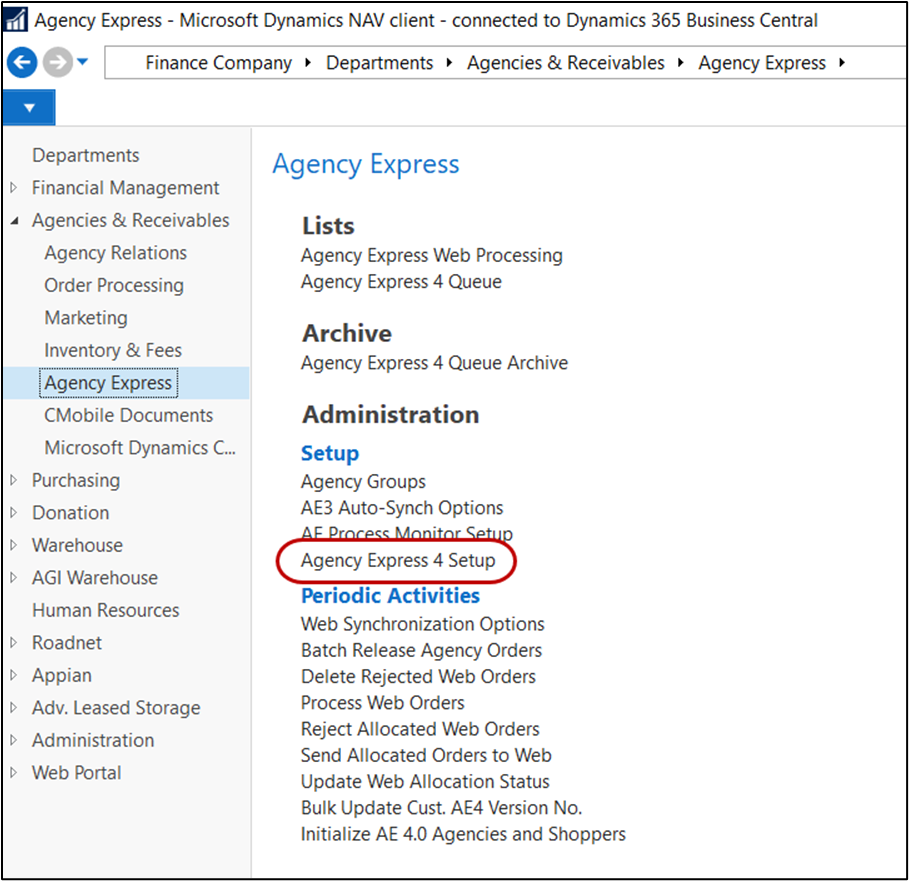
The Agency Express 4 Setup page will open.
General Fast Tab
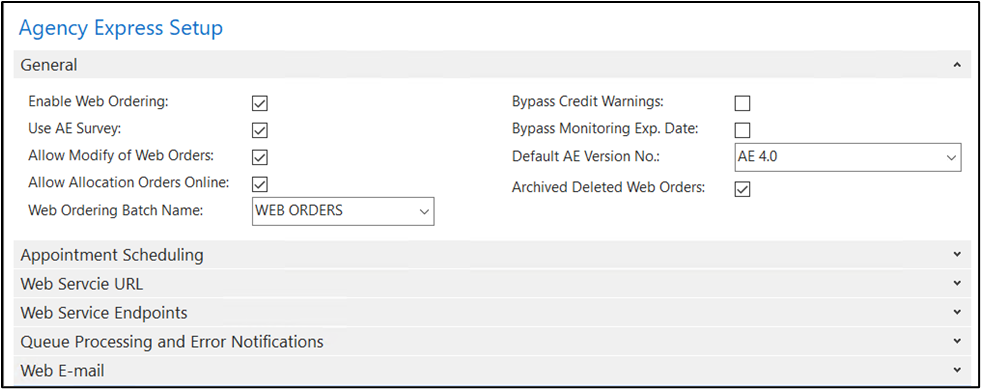
Enable Web Ordering: This field controls whether or not Ceres is synchronized with Agency Express 4.
Note: This field should not be used to turn agency shopping on or off; that is controlled from within Agency Express 4.
Use AE Survey: This field determines whether Ceres surveys will be used with Agency Express 4.
Allow Modify of Web Orders: This field determines whether Ceres will allow order modifications to be made by the Agency Shopper.
Allow Allocation Orders Online (Ceres 5.03.57): This field determines whether Ceres will allow allocated orders to be transmitted to Agency Express 4 and processed as a standard web order.
Web Ordering Batch Name: The Order Batch web orders will be created in. If order batches are not being used, this field cannot be filled in.
Bypass Credit Warnings: If checked, credit limit violations will not be considered as an error for web orders. Any web order that is over the credit limit will still be accepted if this option is selected. With Ceres 5.03.55 and Ceres 5.03.63, if this option is not checked any credit limit violations will be logged as an exception in the Agency Express 4 Order Exception Queue.
Bypass Monitoring Exp. Date (Ceres 5.03.55): If checked Agencies that are past their Monitoring Expiration Date will not be considered as an error for web orders. Any web order for an Agency where their Monitoring Expiration Date has passed will still be accepted if this option is selected. If this option is not checked any Agency where their Monitoring Expiration Date has passed will be logged an exception in the Agency Express 4 Order Exception Queue.
Default AE Version No.: This field indicates which AE Version No. will be set when Permit Web Orders is checked an Agency card.
Blank – This option is only valid if “Enable Web Ordering” is unchecked. If Agency Express 4 Web Ordering is enabled the Default AE Version No. must be set to AE 3.0 or AE 4.0.
AE 3.0 – This option will set the Agency Express version on new Agencies to Agency Express 3.
AE 4.0 – This option will set the Agency Express version on new Agencies to Agency Express 4.
Archive Deleted Web Orders: This field determines if deleted web orders will be archived. If deleted web orders are not archived in Ceres, rejected web orders will not be available on Agency Express 4.
Appointment Scheduling Tab
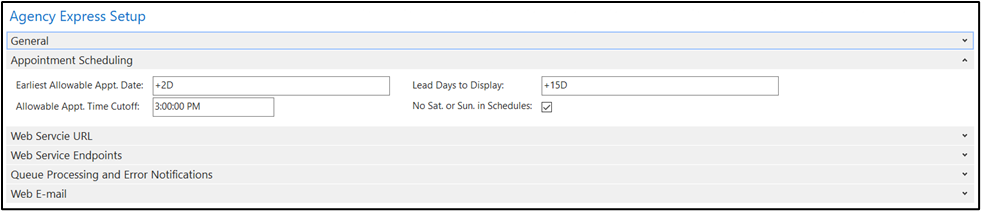
Earliest Allowable Appt. Date: This field determines how many days from TODAY until the first appointment date is available on Agency Express 4. Weekends and Holidays are included if appointments exist for those days. For example, enter +3D to have Ceres calculate and use TODAY plus three days as the earliest allowable appointment date.
Allowable Appt. Time Cutoff (Ceres 5.03.38): This field determines if an additional day is added to the Earliest Allowable Appt. Date. If the current time (based upon the Ceres server time which may differ from the food bank time zone) is past the Allowable Appt. Time Cutoff time one additional day is added when determining the Earliest Allowable Appt. Date.
Lead Days to Display: This field determines how many calendar days past the Earliest Allowable Appointment Date will be communicated to Agency Express 4 for consumption by the Agency Shopper. Weekends and holidays are included. For example, enter +10D to have Ceres calculate and use Earliest Allowable Appointment Date plus 10 calendar days as the available appointment days.
No Sat. or Sun. in Schedules: Checking this field will exclude all Saturday and Sunday dates from the schedule creation automatically. If left unchecked, all Saturday and Sunday dates will be available on Agency Express unless the AE Administrator at the Food Bank specifically removes them.
Note: When using AE4 only, Appointments are created as they are for AE3 but Calendars and Appointments are not synced to Agency Express. This allows the Food Bank to adjust the Calendar and Appointments as necessary.
Web Service URL Tab
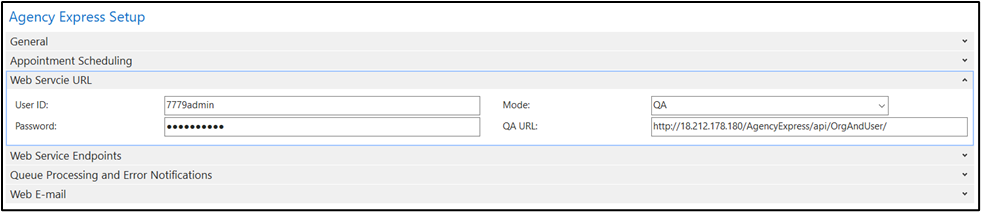
User ID: This field indicates the User ID that will be used when Ceres sends data to Agency Express 4.
Password: This field indicates the password for the User ID that will be used when Ceres sends data to Agency Express 4.
Mode: This field indicates which AE 4 Environment Ceres will connect to.
Live – The live Agency Express 4 environment.
QA – The test or sandbox Agency Express 4 environment.
QA2 – The second test/sandbox Agency Express 4 environment.
Live\QA\QA2 URL: This field indicates the URL for the Mode selected. The value of the field will be different based upon the Mode selected. The URL for this field will be provided by Tech Bridge.
Web Service Endpoint Tab
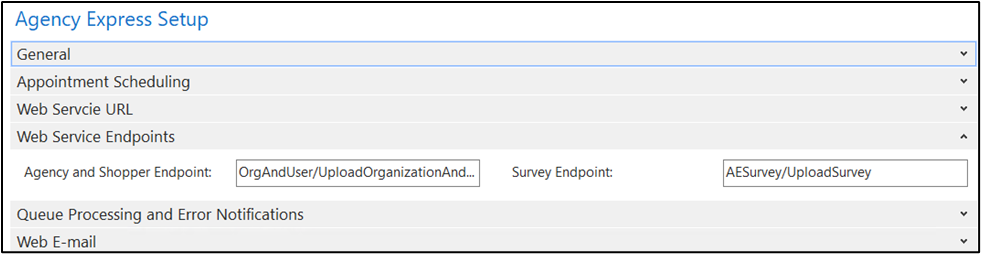
Agency and Shopper Endpoint: This field is the Web Service Endpoint for Agencies and Shoppers and should be set to “OrgAndUser/UploadOrganizationAndShopper”.
Survey Endpoint (Ceres 5.03.45): This field is the Web Service Endpoint for Agencies Surveys and should be set to “AESurvey/UploadSurvey”.
Queue Processing and Error Notifications Tab
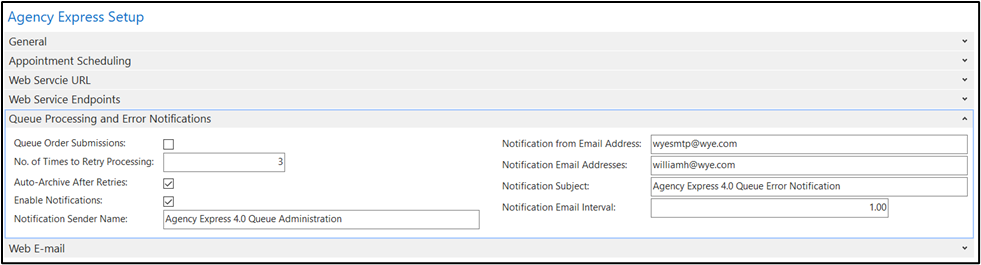
Queue Order Submissions: Place a checkmark here if you wish for inbound order submissions from Agency Express 4 to be queued in in the Agency Express Queue and subsequently processed via automation. By default (unchecked), Inbound order submissions from Agency Express 4 will not be queued and will be processed in real-time.
No. of Times to Retry Processing: This field indicates the number of times Ceres should try to reprocess an Agency Express 4 Queue entry. If “Auto-Archive After Retries” is enabled, Ceres will move the Queue entry to the Agency Express Queue Archive list once the No. of Times to Retry Processing has been reached. Otherwise, the Queue entry will remain in the Agency Express Queue but further processing attempts will not be made. The minimum is 0 and the maximum is 10, the recommended setting is 3.
Auto-Archive After Retries: Place a check mark here to have Ceres automatically move failed queue entries to the Agency Express 4 Queue Archive list once the “No. of Times to Retry Processing” has been reached.
Enable Notifications: This field indicates if email notifications of Agency Express 4 Queue issues is active.
Notification Sender Name: Enter the name under which Agency Express 4 Queue error email notifications will be sent.
Notification from Email Address: Enter the “from” address to be used when Ceres sends Agency Express 4 Queue notifications. This is normally the SMTP email address.
Notification Email Addresses: Enter the address that will receive the Agency Express 4 Queue notification emails. Multiple email addresses can be entered if separated by a semi-colon (;).
Notification Subject: Enter the subject line for the Agency Express 4 Queue notification emails. Example: Agency Express 4.0 Queue Error Notification.
Notification Email Interval: This field governs the number of hours between the initial notification of a given Agency Express 4 Queue error information and subsequent notifications for the same Agency Express 4 Queue error. For example a value of “8” will not send a follow up notification for a given queue error until 8 hours has elapsed since the initial notification. Enter zero to be notified at each error. The maximum value is 24.
Web E-mail Tab
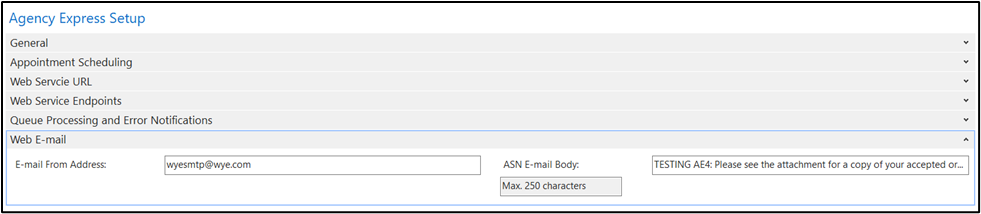
E-mail From Address: Enter the “from” address to be used when Ceres sends Web Ordering related emails.
ASN E-mail Body: This field allows you to define the email body for the order acknowledgement email sent for each Web Order. The field is limited to 250 characters and is a static message; no references to Agency, Contact, or Order No., etc. will be referenced in the message body. The email subject will include the order number (e.g. Order AO-01848 Accepted) and a PDF version of the Web Order will be attached to the email.
Note: In Agency Express 4 the order acknowledgement (e.g. ASN) is only sent upon order acceptance in Ceres.
Job Queue Setup
To access Job Queue Setup, select Departments à Administration à Application Setup à Job Queue.
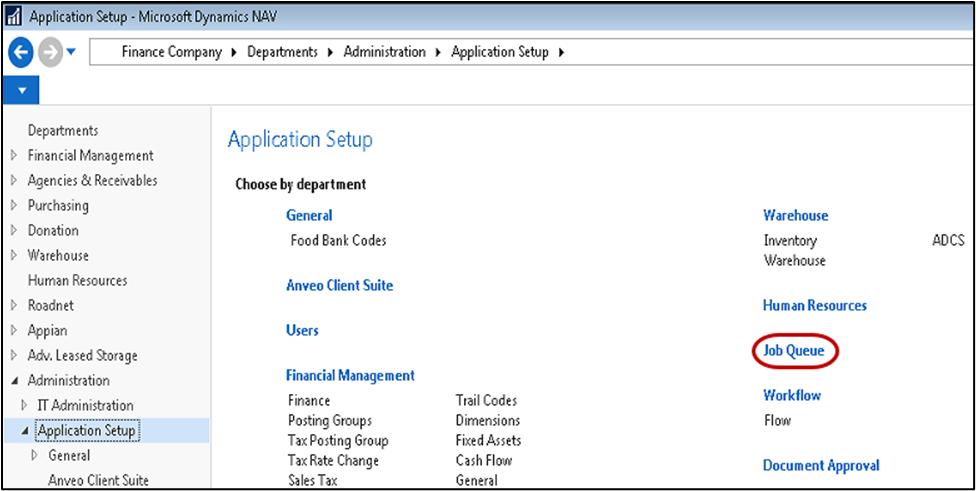
This will bring you to the job queue menu:
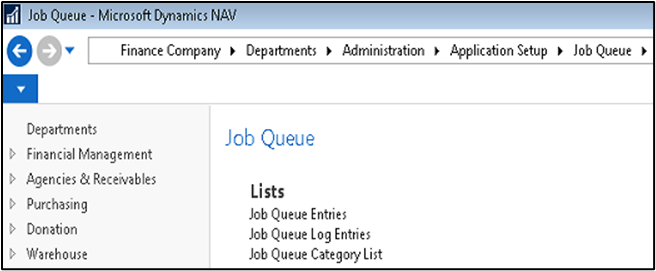
Select Job Queue Entries from the Job Queue menu:
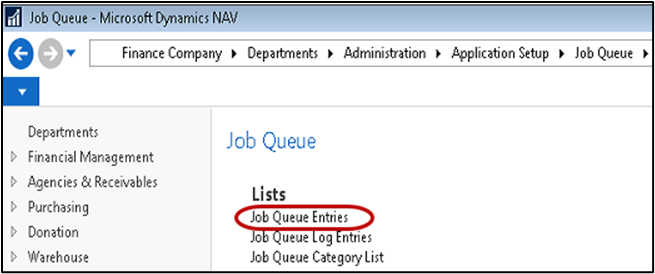
To create the AE4 Job Queue Entry, select New from the Home Ribbon:
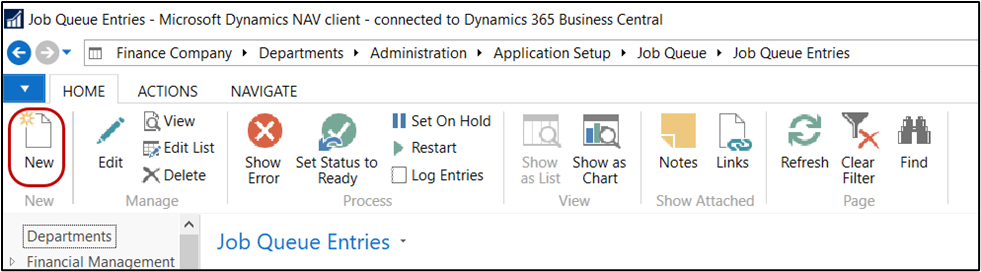
A new Job Queue Entry card will be displayed.
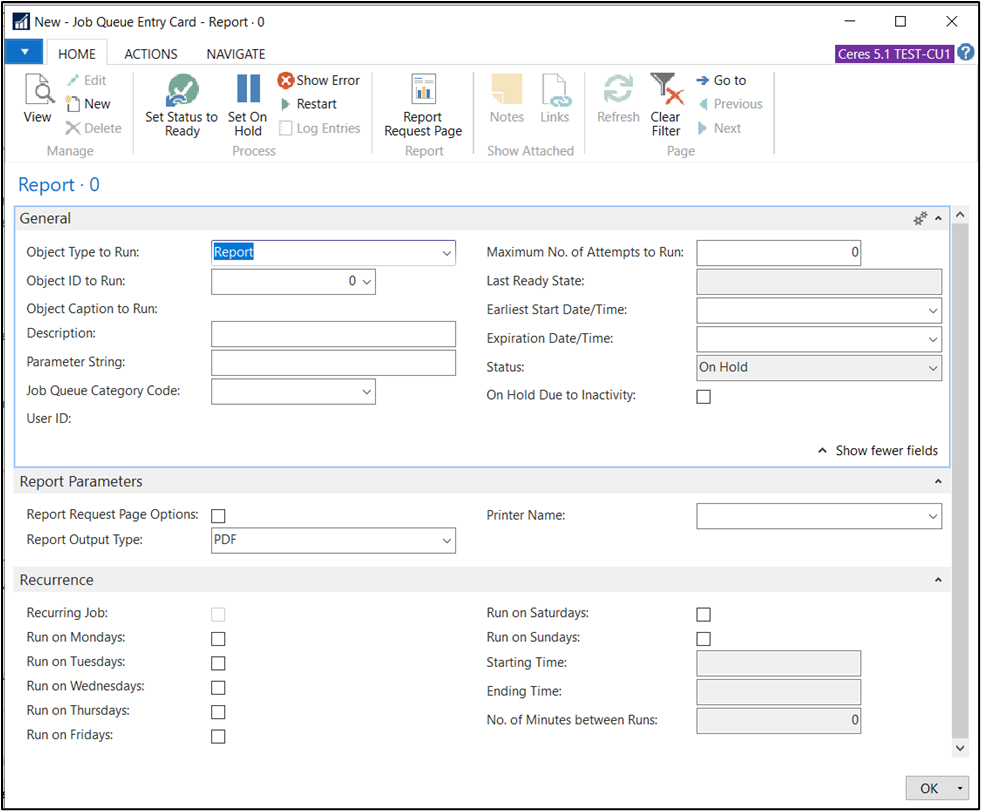
General Fast Tab
Object Type to Run: Select from the drop-down list to run either a report or codeunit.
Object ID to Run: Enter the object ID of the report or codeunit to run.
Description: Enter a description of the entry task being run.
Parameter String: Enter any parameter that must be passed to the report or codeunit. The report or codeunit must be set up to accept a parameter string. If the object is not set up to handle a parameter this field should be left blank.
Job Queue Category Code: Enter a valid Job Queue Category Code from the drop-down list if desired. This field is used to tie Job Queue with Job Queue Entries to determine which Job Queue will execute the Job Queue Entry. This can be used for segregation of jobs or load balancing.
User ID: This field will be updated automatically with your user ID.
Maximum No. of Attempts to Run: This field can be used in conjunction with the timeout to automatically restart a job a number of times if it times out. If left at zero (0), the job will not attempt to restart if it times out. These fields are used primarily when it is known that a certain condition will routinely occur that will interfere with the normal job completion and the user wants to restart it a number of times before entering into an error condition.
Last Ready State: This field is automatically updated by the system and reports the Job Queue Entries last known time that the job was at the job status of ready. This can be useful information to determine how long a job entry has been inactive.
Earliest Start Date/Time: Specifies the first date and time on which the job runs. This can be left blank to indicate a job that will run continuously or until changed by the user.
Expiration Date/Time: Specifies the last date and time on which the job runs. The job will not run after this date. This can be left blank to indicate a job that will run continuously or until changed by the user.
Status: Ceres sets the initial status of a job to On Hold. This allows time for you to finish set-up before a job is run. To change the status, on the Home tab, in the Process group, choose Set Status to Ready. After job queues are set up and running, Ceres gives you updated status information. The following is a list of the available Status codes:
On Hold – Job Queue is set to on hold by a user and will not run. You must set the status to Ready to re-engage automatic execution of this Job Queue.
Ready – This status indicates that the job is ready and waiting until it needs to run based on the next execution date and time.
In Process – This status is set by the system when the Job Queue is currently running. Upon completion it will change to status Finished. If the Job Queue is reoccurring, the status will then be changed to Ready for the next run.
Error - This status indicates the job queue has failed to complete normally. There can be a number of reasons for failure. You can view the errors associated with the job queue to determine what corrective actions can be taken to resolve the error. Job Queues in this status will not run any longer until the user takes action to resolve and reset the status to Ready.
Finished – This status indicates that the Job is complete and is not scheduled to run again. Typically, these jobs are automatically removed from the Job Queue upon completion. Job Queues remaining with a finished status may be set back to Ready status if they are reoccurring.
Note: After a job is run successfully, it is removed from the list of job queue entries unless it is a recurring job. If it is a recurring job, the earliest start time field is adjusted to be the next time that the job is expected to run.
Recurrence Fast Tab
Recurring Job: This field is updated automatically and will be checked if any of the “Run on Day of Week” fields are checked.
Run on Mondays – Run on Sundays: Place a check on any of the days that you wish this job to run. Check all seven if the job is to run every day.
Starting Time: Enter a starting time that the job should begin running during the day. Leave it blank if the job should run throughout the day (24 hours).
Ending Time: Enter an ending time that the job should stop running during the day. Leave it blank if the job should run throughout the day (24 hours).
No. of Minutes between runs: Enter the number of minutes between job runs. This number should be large enough to allow the job to complete normally. As all jobs will consume resources care should be taken to ensure that the job runs as often as needed without impacting performance.
Setting up the AE4 Job Queue Entries
These are the recommended settings for the AE4 Job Queue Entry. The time between runs will need to be adjusted based on the volume of transactions.
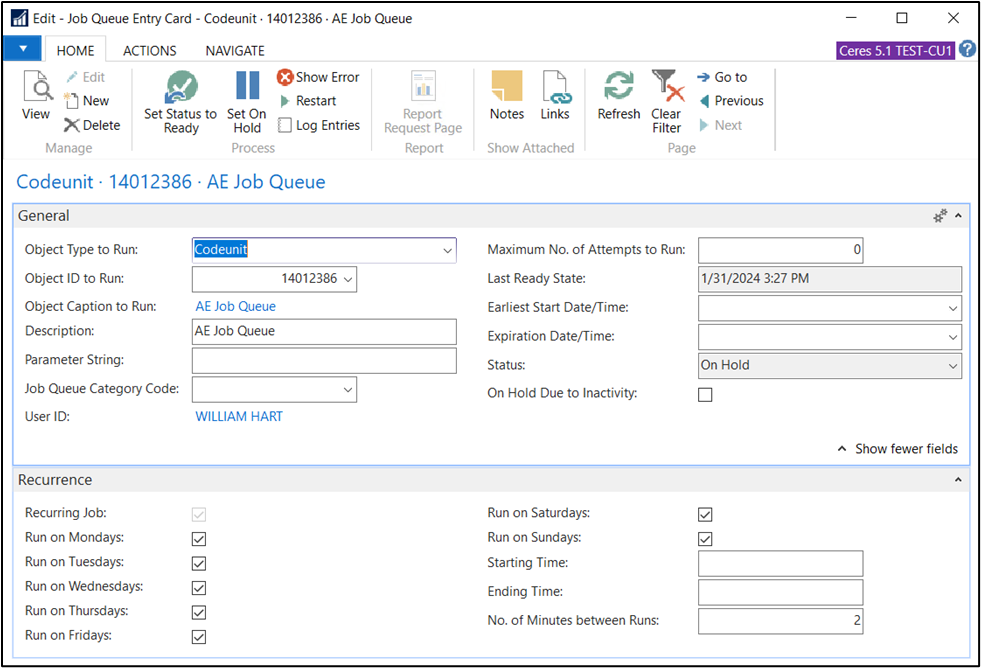
Note: Once the setup is completed, use “Set Status to Ready” on the AE4 Job Queue Entry to start the Job Queue.
These are the recommended settings for the Send ASN Management Entry which is responsible for sending the ASN upon order acceptance. The time between runs will need to be adjusted based on the volume of transactions.
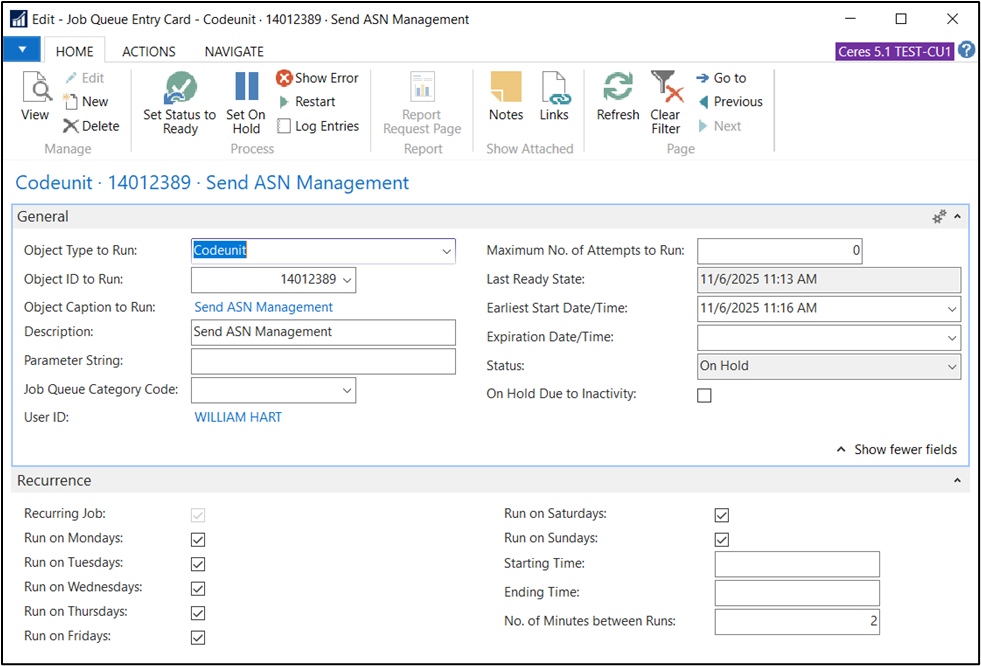
Note: Once the setup is completed, use “Set Status to Ready” on the Send ASN Management Entry to start the Job Queue.
AE4 Queue
The Agency Express 4 Queue is used as a staging point for inbound and outbound transactions to and from Ceres/Agency Express 4. The primary outbound records are Agency and Shopper information. When permitting an Agency and/or Shopper for Agency Express 4 Web Ordering, a record will be created in the Agency Express 4 Queue. The Queue is also used as the staging point for inbound transactions from Agency Express 4 provided that the “Queue Order Submissions” is checked on Agency Express 4 Setup.
The Agency Express 4 Job Queue is responsible for processing and archiving Agency Express 4 Queue records. Normally, the Agency Express 4 Queue will be empty subsequent to the successful completion of the Agency Express 4 Job Queue. Only records that are in Status = Failure should need to be addressed.
To access the Agency Express 4 Queue, select Departments à Agencies & Receivables à Agency Express à Lists à Agency Express 4 Queue.
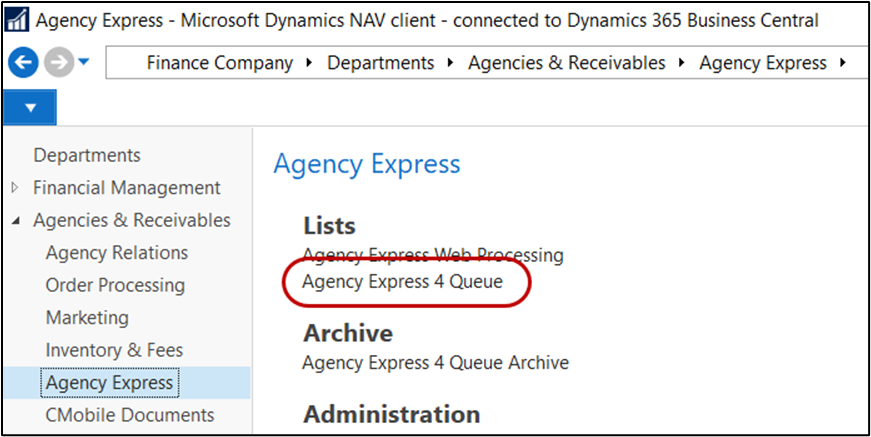
The Agency Express 4 Queue will be displayed.
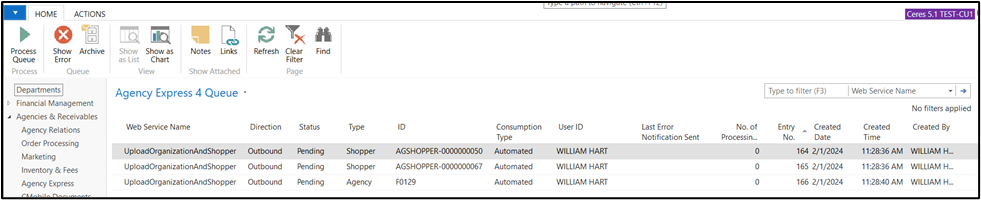
The following action are available on the Agency Express 4 Queue:
Process Queue: This action will manually process the Agency Express 4 Queue. Automatic processing of the queue is governed by the Agency Express 4 Job Queue and is based upon the “No. of Minutes between runs” parameter. A user can select the “Process Queue” action in order to manually process the Agency Express 4 Queue prior to the next scheduled run of the Agency Express 4 Job Queue.
Show Error: If an Agency Express 4 Queue record is in State = Failure, selecting “Show Error” will display the error the system encountered when attempting to process the record.
Archive: Select this action to manually archive an Agency Express 4 Queue record.
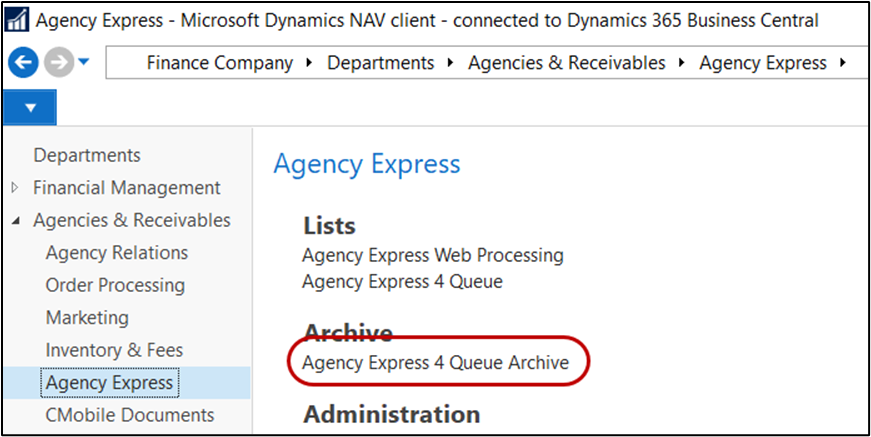
Once an Agency Express Queue has been successfully processed the record is moved to the Agency Express 4 Queue Archive. To access Agency Express 4 Queue Archive, select Departments à Agencies & Receivables à Agency Express à Archive à Agency Express 4 Queue Archive.

1980 Festival Plaza Drive, Suite 300, Las Vegas, NV 89135-2930
1-702-745-6967
Was this article helpful?
That’s Great!
Thank you for your feedback
Sorry! We couldn't be helpful
Thank you for your feedback
Feedback sent
We appreciate your effort and will try to fix the article